

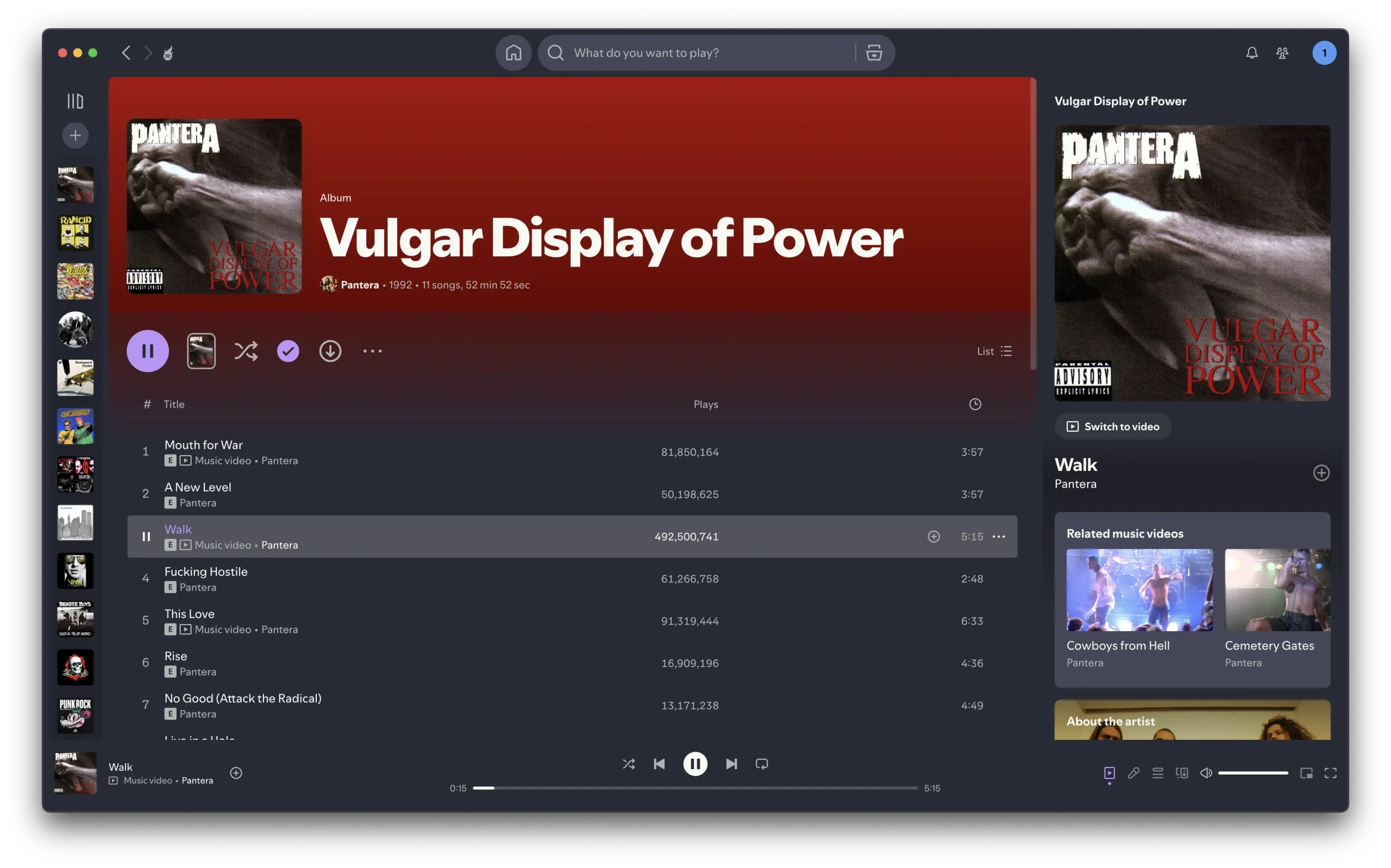
Spotify is still a top-tier music streaming service, regardless if you’re using macOS, Linux or Windows. But let’s face it: the default player interface is basic, boring, and ugly. Enter Spicetify! A powerful tool which allows you to personalize your Spotify experience, from themes to extensions and custom apps.
What is Spicetify?
Spicetify is an open-source command-line utility designed to customize the Spotify desktop client. It allows users to:
- Apply custom themes to change Spotify’s appearance.
- Add extensions that enhance functionality.
- Develop and integrate custom apps for additional features.
Installing
Windows Installation
Using PowerShell:
- Open PowerShell as an administrator.
- Run the following command to install Spicetify:
iwr -useb https://raw.githubusercontent.com/spicetify/cli/main/install.ps1 | iexInstall the Marketplace:
iwr -useb https://raw.githubusercontent.com/spicetify/marketplace/main/resources/install.ps1 | iexAlternative Methods:
- Chocolatey:
choco install spicetify-cli - Scoop:
scoop install spicetify-cli - Winget:
winget install spicetify-cli
macOS and Linux Installation
Using Shell Script:
curl -fsSL https://raw.githubusercontent.com/spicetify/cli/main/install.sh | shInstall the Marketplace:
curl -fsSL https://raw.githubusercontent.com/spicetify/marketplace/main/resources/install.sh | shAlternative Methods:
- Homebrew/LinuxBrew:
brew install spicetify-cli - AUR (Arch Linux):
yay -S spicetify-cli
A note for Linux users: before applying Spicetify, you need to gain write permission on Spotify files, by running command:
sudo chmod a+wr /opt/spotify
sudo chmod a+wr /opt/spotify/Apps -R
Applying Themes
- Download themes from the Spicetify Themes Repository.
- Extract the downloaded themes.
- Move the theme folder to the Spicetify Themes directory:
- Windows:
%appdata%\spicetify\Themes\ - macOS/Linux:
~/.config/spicetify/Themes/
Set and apply the theme:
spicetify config current_theme <theme_name>
spicetify apply
Popular Themes: Dribbblish, Comfy, Nord-Spotify and my favorite Dracula
Adding Extensions
- Download extensions from the Extensions Repository.
- Place them in the Extensions directory:
- Windows:
%appdata%\spicetify\Extensions\ - macOS/Linux:
~/.config/spicetify/Extensions/
Enable and apply the extension:
spicetify config extensions <extension_name>.js
spicetify apply
Popular Extensions: Adblock, Lyrics Plus, Skip Stats
Managing via CLI
- Backup:
spicetify backup - Restore:
spicetify restore - Reset:
spicetify clear - Help:
spicetify --help
Uninstalling
To revert Spotify:
spicetify restore backup applyDelete configuration directories:
- Windows:
%appdata%\spicetify\ - macOS/Linux:
~/.config/spicetify/
For more info and troubleshooting, you can visit the official documentation here. And here’s some more themes: