

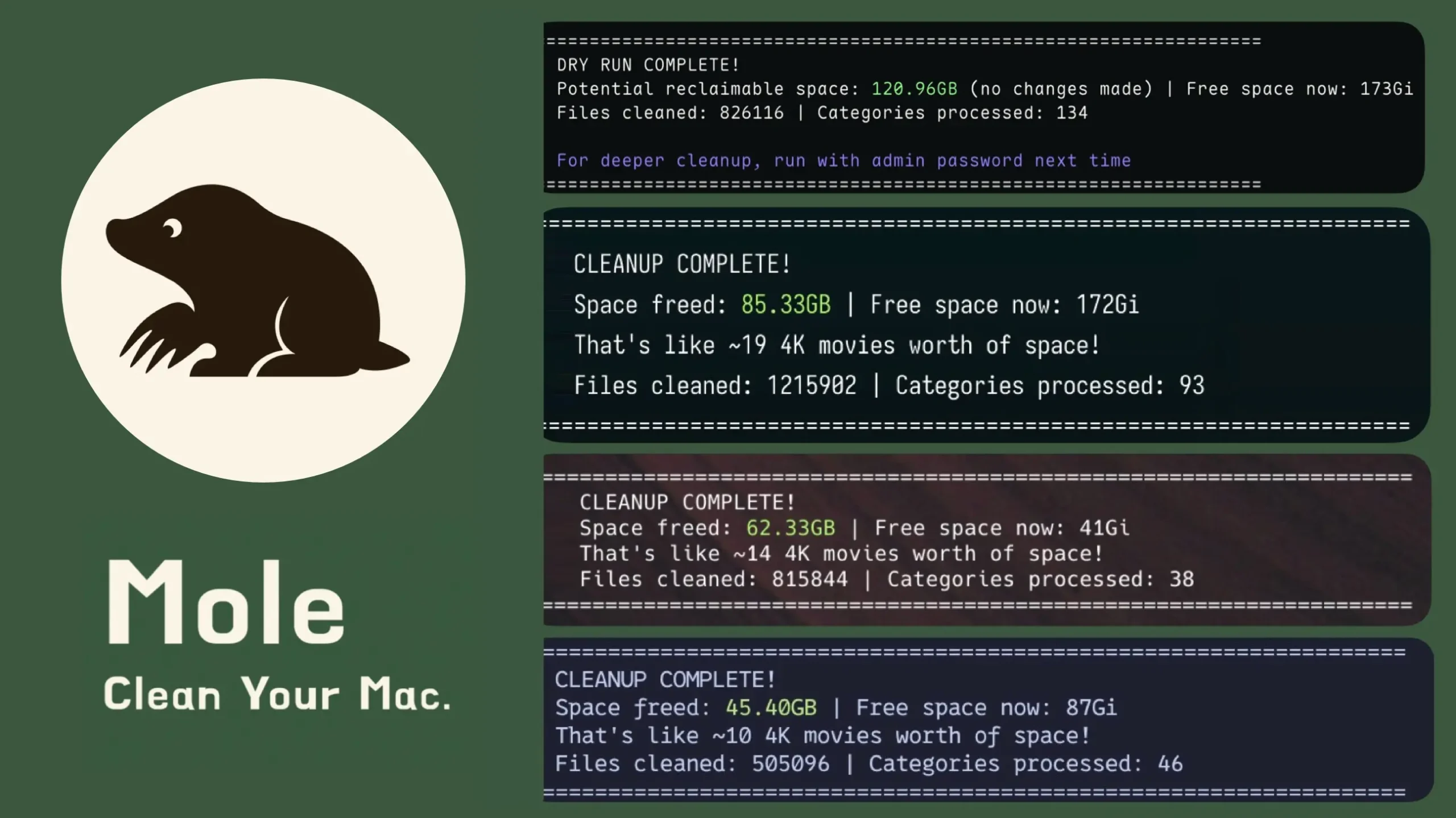
Mac maintenance software has a mixed reputation. Some utilities solve real problems. Others promise to make a Mac dramatically faster while doing little more than deleting caches that macOS will eventually rebuild.
Mole takes a more practical approach.
Instead of focusing only on “junk cleaning,” it combines file cleanup, app removal, disk analysis, macOS maintenance, developer cleanup, and system monitoring in one toolkit.
There are actually two versions of Mole. The original Mole CLI is free and open source and runs in Terminal. The separate Mole for Mac app provides a native graphical interface along with visual disk maps, software management, monitoring tools, and other extras.
That combination makes Mole interesting not just as a Mac cleaner, but as a broader maintenance toolkit.
What Is Mole?
Mole began as a command-line utility for maintaining macOS. Its main jobs are simple: clean unnecessary files, uninstall apps and their leftovers, analyze storage usage, run maintenance tasks, and monitor system activity.
The free CLI officially supports Intel and Apple Silicon Macs running macOS 12 or newer.
The native Mole for Mac app expands the idea into five main areas:
- Clean
- Software
- Optimize
- Analyze
- Status
Together, those sections cover most of the jobs people normally use several separate Mac utilities to perform.
The important distinction is that Mole is not simply trying to find the largest possible amount of data to delete. Several of its tools are designed to help you understand what is consuming storage or system resources before you remove anything.
Cleaning Without Deleting Everything in Sight
Mole’s cleaning tools target data that can generally be recreated safely, including caches, logs, temporary files, and certain leftovers from applications that are no longer installed.
More importantly, Mole gives you a chance to inspect what it intends to remove.
The CLI supports dry-run previews for destructive commands. For example:
mo clean --dry-runThis shows what the cleaner plans to do without actually deleting the files.
Similar dry-run options are available for several other commands, including uninstalling applications, clearing build artifacts, running optimization tasks, and removing installer files.
That may sound like a small feature, but it is exactly the kind of behavior a maintenance utility should encourage.
Deleting gigabytes is easy. Deciding which gigabytes are genuinely disposable is the harder part.
Recent Mole releases have also become increasingly conservative around shared directories, active caches, development environments, downloaded dependencies, cloud-backed files, model data, and other files that may technically be replaceable but inconvenient or expensive to recreate.
Uninstall Apps and Remove Their Leftovers
Dragging a Mac app into the Trash usually removes the application itself, but it does not necessarily remove everything the app created.
Depending on the software, related files can remain in locations such as Application Support, Preferences, Caches, Containers, and LaunchAgents.
Mole’s uninstaller looks for those related files so they can be reviewed and removed alongside the application.
From Terminal, the command is:
mo uninstallYou can preview the operation first with:
mo uninstall --dry-runThe distinction matters because app uninstallers have to balance completeness against safety. Matching too loosely risks identifying shared files that belong to other software. Matching too conservatively may leave behind a few harmless preferences or caches.
Mole’s development has increasingly favored the conservative side of that trade-off, with additional protections around shared and system-owned locations.
That is the right priority. Leaving behind a tiny preference file is inconvenient. Removing an unrelated directory is potentially destructive.
Find What Is Really Filling Your Mac’s SSD
Disk analysis may be one of Mole’s most valuable features because low storage is not always caused by caches.
A single forgotten folder can consume more space than months of temporary files.
Common examples include:
- Large video exports
- Old Downloads
- Virtual machines
- Docker data
- Xcode build files
- iPhone and iPad backups
- Large development projects
- Installer archives
The native Mole app provides a visual treemap that makes unusually large folders easier to identify.
The CLI offers its own interactive disk explorer:
mo analyzeYou can browse directories, identify unusually large files and folders, and investigate where your storage has actually gone.
This changes the cleanup process from guesswork into diagnosis.
If a forgotten project directory is consuming 80 GB, finding that directory is far more useful than repeatedly removing another 500 MB of temporary files.
Monitor CPU, Memory, Temperature, and More
Mole is not limited to storage maintenance. It also includes live system monitoring.
The native app can display information such as:
- CPU usage
- Memory usage
- GPU activity
- Disk activity
- Network traffic
- Temperature
- Fan speed
- Battery information
- Running processes
The CLI provides its own live system dashboard with:
mo statusThis is useful when a Mac feels slow but storage is not the obvious problem.
High CPU usage, memory pressure, heavy disk activity, thermal throttling, or a runaway process can all make a Mac feel sluggish. Deleting caches will not fix those problems.
A monitoring view gives you a better chance of identifying the actual cause.
Mole Is Particularly Useful for Developers
Developers may get more value from Mole than typical Mac users because development environments can generate enormous amounts of rebuildable data.
Xcode, Docker, Node.js, Rust, Swift, package managers, compilers, and other build systems can gradually accumulate gigabytes of generated files.
Mole includes tools specifically designed for this kind of cleanup.
The command:
mo purgesearches projects for rebuildable artifacts such as build directories and dependency folders.
Rather than blindly removing everything it finds, Mole groups results by project and lets you review the candidates. Recent activity is also taken into account so that actively used project data is treated more cautiously.
You can preview the scan without deleting anything:
mo purge --dry-runMole also includes:
mo installerwhich searches for old installer files such as DMG, PKG, ISO, XIP, and installer archives across several common locations.
This developer awareness is one of Mole’s strongest advantages over generic Mac cleaning apps. It recognizes that a 5 GB build directory is different from a 5 GB folder containing original user files.
Manage App Updates and Startup Items
The native Mole for Mac app goes beyond uninstalling software by adding application management features.
It can check for updates through common Mac software distribution systems, including Sparkle, the Mac App Store, and Homebrew.
It can also help manage supported login and background items.
That can have a more noticeable effect on day-to-day Mac performance than deleting old caches.
If a Mac becomes sluggish immediately after login, for example, the real issue may be several applications and background services launching at the same time.
Reviewing startup software can therefore be a much more useful troubleshooting step than running another generic cleanup.
Useful Mole CLI Commands
The free version of Mole revolves around the mo command.
Some of the most useful commands include:
mo clean
mo uninstall
mo optimize
mo analyze
mo status
mo purge
mo installer
Running Mole without a subcommand:
moopens its interactive Terminal interface.
There are also additional commands for updating Mole, configuring shell completion, viewing previous cleanup activity, and managing other settings.
For people who already spend much of their day in Terminal, this is one of Mole’s biggest advantages. The CLI provides a capable maintenance toolkit without requiring another graphical utility running on the Mac.
How to Install Mole
The simplest way to install the free Mole CLI is through Homebrew:
brew install moleAfter installation, launch it with:
moThe project also provides a script-based installation option for users who do not want to install it through Homebrew.
The CLI officially supports macOS 12 or newer and works on both Intel and Apple Silicon Macs.
If you prefer a graphical interface, the separate Mole for Mac app currently costs $19 as a one-time purchase. One license covers two Macs and includes lifetime updates.
The native app currently requires macOS 14 Sonoma or newer.
Is Mole Safe to Use?
No Mac cleaner should be trusted blindly, including Mole.
Any utility capable of reclaiming meaningful amounts of disk space also has the ability to remove files you may want to keep.
Mole does, however, provide several useful safeguards.
These include dry-run previews, confirmation prompts, protections for shared and system-owned paths, whitelists for files you want to preserve, and cleanup rules designed to skip items when Mole cannot determine that they are safe to change.
The CLI can also keep a history of cleanup operations, which is useful when reviewing what happened after a maintenance session.
Some operations may require administrator privileges, while Full Disk Access can be necessary when Mole needs to inspect protected areas of macOS.
The project states that file scanning is handled locally rather than sending lists of your files to a remote server.
The safest way to use Mole is still straightforward: run a dry-run or review the proposed changes before confirming a destructive operation.
Free Mole CLI vs Mole for Mac
The two versions overlap considerably, but they are separate implementations aimed at slightly different users. Some features correspond closely between them, while others are available only in one version.
| Feature | Mole CLI | Mole for Mac |
|---|---|---|
| Price | Free and open source | $19 one-time purchase |
| Interface | Terminal | Native graphical app |
| File cleanup | Yes | Yes |
| App uninstalling | Yes | Yes |
| Disk analysis | Interactive Terminal explorer | Visual treemap |
| System monitoring | Terminal dashboard | Graphical dashboard and menu bar tools |
| Developer cleanup | Dedicated mo purge with broader project cleanup |
More conservative developer and build cleanup; no full mo purge equivalent |
| App update management | No | Yes |
| Startup management | No | Yes |
If you are comfortable in Terminal, the free CLI may be all you need.
If you prefer visual disk analysis, software management, system monitoring, and a conventional Mac interface, the paid app is the more convenient option.
Is Mole Worth Using?
For the right user, yes.
Mole is most compelling for people who want to understand what is using storage and system resources rather than simply press a large “Clean” button and hope for the best.
The free CLI is especially attractive for developers, Terminal users, and anyone who wants an open-source maintenance utility.
The native app makes more sense for people who want the same general philosophy in a polished graphical interface, with visual storage analysis, software management, startup controls, and ongoing system monitoring.
Its biggest strength is not any single cleaning feature. It is the way several related tools work together.
You can identify what is filling your SSD, inspect large directories, remove unused applications and their leftovers, clear rebuildable development artifacts, check startup software, monitor system activity, and perform maintenance from one toolkit.
Just do not treat Mole—or any other cleaner—as something that needs to run constantly. macOS already handles much of its routine housekeeping on its own.
Mole is more valuable when you have a specific problem to investigate: disappearing disk space, abandoned applications, oversized development folders, excessive startup items, or unexplained system load.
Used that way, it is considerably more useful than a utility whose main selling point is simply deleting the largest possible amount of “junk.”
You can explore the free project on GitHub or learn more about the native app at mole.fit.
