



Install a password manager, a cloud sync app, a clipboard manager and a few other utilities, and your Mac’s menu bar can get crowded fast. You still need those apps running. You just don’t need to see every icon all day.
Dimble lets you hide menu bar icons and bring them back when you need them. You can reveal them with the pointer, open them in a panel or find them with a keyboard shortcut. It’s free, open source and built for macOS 27 or later. Older versions of macOS aren’t supported.
Choose which icons stay visible
Dimble sorts menu bar items into three sections: Visible, Hidden and Always Hidden. Visible is for the icons you check regularly. Hidden keeps occasional tools close without taking up space. Always Hidden is for the stuff you almost never need to open.
Say you want your VPN status visible but only check your backup app every few days. Leave the VPN in Visible and move the backup icon to Hidden. Both apps keep running, but the menu bar isn’t forced to display both.
You can arrange the sections in Dimble’s layout editor and press Apply to update the real menu bar. Or hold Command and drag an icon directly across the chevron. Dimble keeps track of the new arrangement, so you don’t have to repeat it in Settings.
There are limits to what macOS lets any menu bar manager do. Items belonging to the same app may hide together, and protected system items such as the clock and Control Center can’t be freely rearranged. Dimble marks those restrictions instead of pretending every icon is independent.
Hidden icons are still a click away
Move the pointer to the menu bar and Dimble can reveal the Hidden section. You can also click the chevron, click empty menu bar space if you’ve enabled that option, or use a keyboard shortcut. A double click or Option click on the chevron reveals the Always Hidden section.
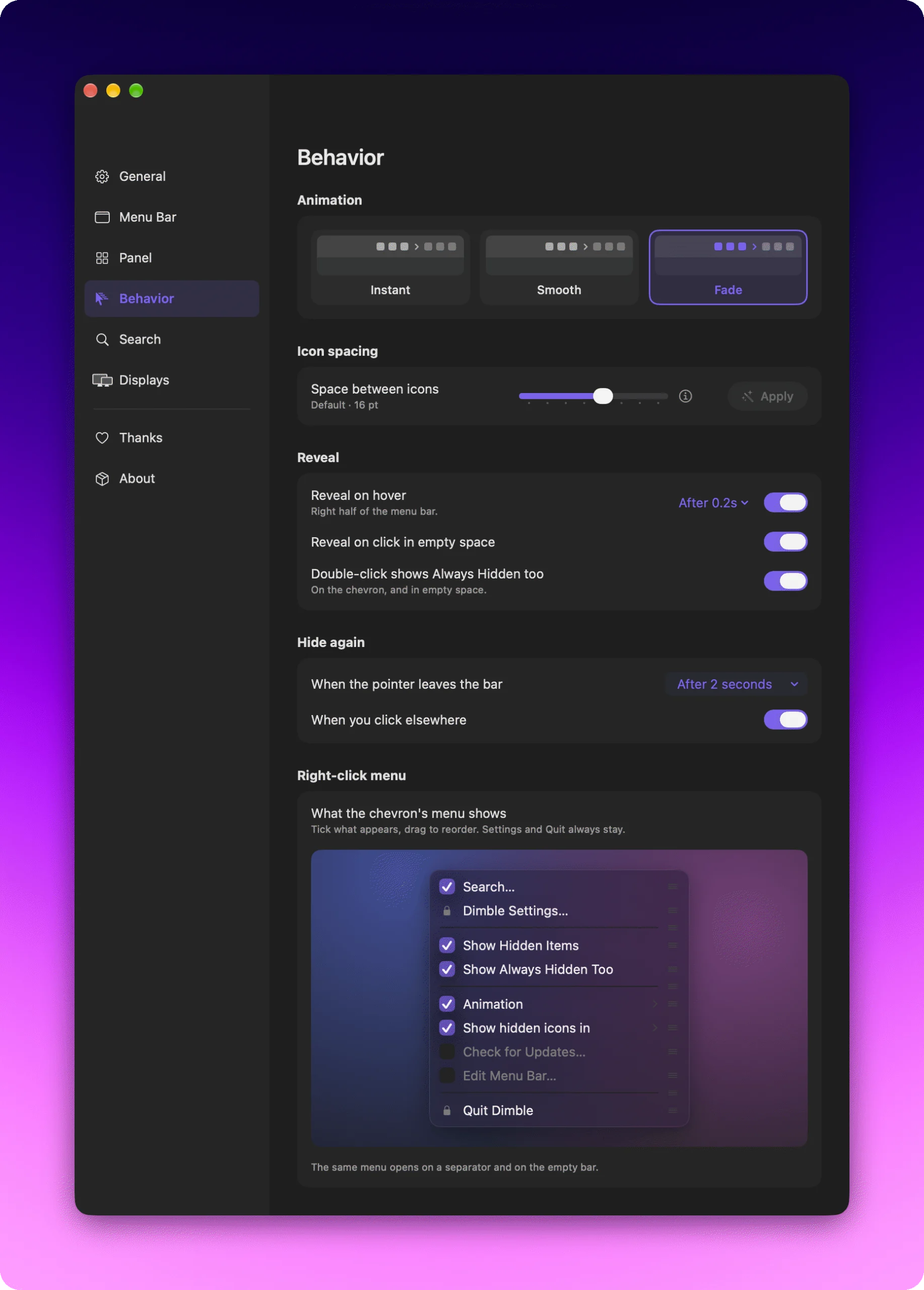
Under Settings > Behavior, you can choose when icons appear, how long they stay visible and whether their return uses an Instant, Smooth or Fade transition. Once you’re done with an icon, the others can tuck away again automatically.
What if the menu bar is already too full?
Revealing a dozen hidden icons isn’t particularly helpful if they don’t fit on the screen. Dimble has a Panel option that displays hidden items as clickable tiles below the menu bar instead. Click a tile and its real menu opens. You can also search within the panel or use a compact Row layout.
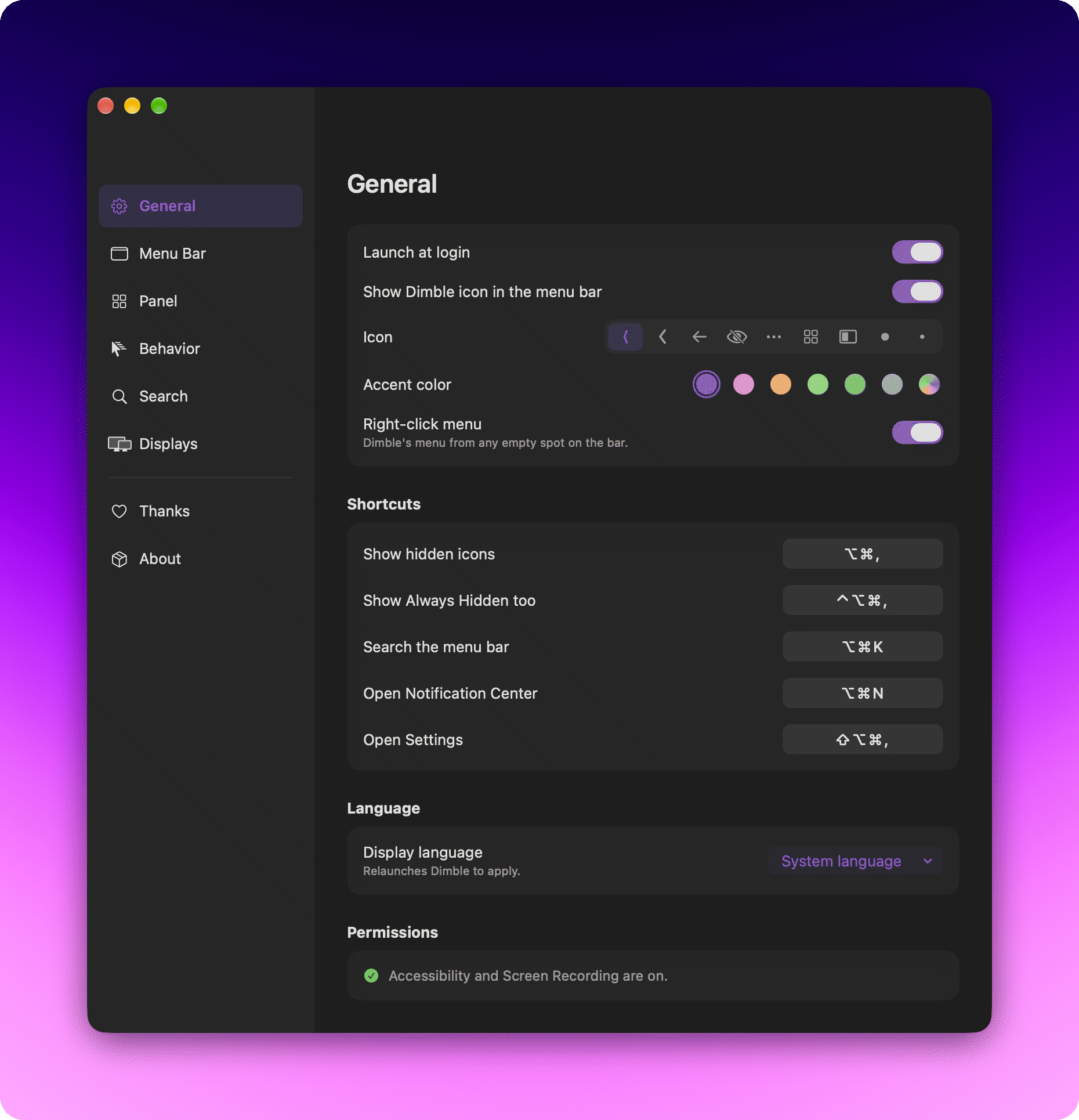
There’s a separate search shortcut too. Press Option + Command + K, type part of an icon’s name and press Return to open it. That can be easier than remembering where you placed a particular utility. Dimble also recognizes some common abbreviations, such as bt for Bluetooth.
A few useful extras
Dimble isn’t limited to hiding existing icons. It can add app launchers and separators, adjust the space between items and let you choose different reveal behavior on different displays. The ordering of the actual menu bar items remains shared, because that’s how macOS handles them.
It also includes replacements for certain system controls, such as media playback, Focus and a timer. That’s useful because hiding menu bar items on macOS 27 can temporarily take some of Apple’s own controls with them. These are Dimble’s controls, though, not exact copies of everything macOS provides. Its timer, for example, doesn’t display an existing timer from Apple’s Clock app.
Another feature worth mentioning is support for Live Activities. With Screen Recording permission, Dimble can keep an ongoing activity visible near the menu bar while other icons are hidden. It’s an optional feature, not a requirement for ordinary icon hiding.
Why macOS 27 is a requirement
Dimble takes advantage of the menu bar architecture introduced in macOS 27. Rather than covering unwanted icons with another window, it asks macOS to hide them, which lets the system reclaim that space.
The catch is that the relevant mechanism lives in an undocumented Apple framework called MenuBarClientCore. If Apple changes it, Dimble may need an update before hiding works again. The developer has implemented a fallback intended to leave icons visible when the mechanism is unavailable, but that isn’t a guarantee about future versions of macOS.
Permissions and privacy
Dimble needs Accessibility access to identify menu bar items, work out their positions and open hidden menus. Screen Recording is optional. It enables Dimble’s custom transitions and certain visual features, but the basic hide and reveal behavior can use macOS’s own animation without it.
The developer’s security documentation says there is no telemetry, crash reporting or account requirement. It also identifies network access for Sparkle updates and a GitHub star count in the Thanks pane. That’s more specific than claiming the app never connects to the internet. I haven’t independently audited its network traffic.
Dimble isn’t sandboxed and isn’t distributed through the Mac App Store. The project documents Developer ID signing, Apple notarization and signed Sparkle updates, but those safeguards don’t remove the need to be comfortable with the permissions you’re granting.
Download and install Dimble
Dimble is available from its official website and GitHub Releases. Download the DMG, move the app to Applications and launch it. Stable releases and an optional beta channel are offered separately.
Homebrew also has a Dimble cask. Install it with:
brew install --cask dimbleNew to Homebrew? FSM’s Homebrew Starter Guide covers installing and managing Mac apps from Terminal.
What about Hidden Bar and Thaw?
Dimble isn’t the only free menu bar manager for macOS 27. Hidden Bar, which we’ve covered before, also supports macOS 27 through its GitHub and Homebrew versions. Its Mac App Store version has a limitation on macOS 27: it can’t hide the icons. Thaw has a separate version built for macOS 27 as well.
The difference isn’t simply whether the apps can hide an icon. Dimble gives you a layout editor, three visibility sections, a searchable panel and keyboard access to individual items. If you already use Hidden Bar or Thaw, compare those particular workflows before switching. If you’re on macOS 26 or earlier, Dimble isn’t an option at all.
For a crowded menu bar on macOS 27, Dimble is worth considering. It focuses on making icons available without keeping them permanently visible. Just keep its two important limitations in mind: the required Accessibility permission and its reliance on an undocumented part of macOS.