

How do you transfer a bunch of photos from your Android phone to your Mac? Or a PDF from your Linux machine to your iPhone? You could use cloud storage, email, a messaging app or, depending on your devices, a USB cable.
Or you could use LocalSend.
I first wrote about LocalSend in 2024 as an alternative to AirDrop. Today, it’s an app I use daily across macOS, Linux, iOS and Android.
LocalSend is a free and open source application that allows you to transfer files, folders and text between devices on your local network. There’s no account to create, no subscription to pay for and no cloud storage involved in the transfer.
And with the release of LocalSend 1.18, there’s quite a bit more you can do with it.
How LocalSend works
LocalSend communicates directly with other devices on your local network. It automatically discovers nearby devices using network discovery and transfers files using its own open protocol.
Your devices don’t necessarily need to be connected to WiFi. You can have a desktop computer connected to your router via Ethernet and a phone connected wirelessly. As long as the devices can communicate over the local network, LocalSend can transfer files between them.
You can also use LocalSend without an internet connection. Your router doesn’t need to be connected to the internet for two devices on its local network to communicate.
This is particularly useful when transferring large files. There’s no need to upload a 2GB video somewhere only to download those same 2GB on another device. The transfer takes place directly between the devices, with the speed depending on your hardware and network connection.
Installing LocalSend
LocalSend is available for Windows, macOS, Linux, Android and iOS. The source code is available under the Apache 2.0 license.
You can download the app from the official website or install it using your operating system’s app store or package manager.
On Android, LocalSend is also available through F-Droid.
On macOS, you can install it via Homebrew:
brew install --cask localsendAnd on Linux, LocalSend is available on Flathub, among other distribution channels.
flatpak install flathub org.localsend.localsend_appInstalling LocalSend through an app store or package manager whenever possible makes keeping it up to date a little easier.
How to transfer files between devices
Once installed, open LocalSend on both devices. You’ll notice that each device has a randomly generated name. You can change the name in Settings to something a little more useful, especially if you have several devices running LocalSend.
- Open the Send tab on the device you want to send files from.
- Select the files you want to transfer.
- Under Nearby devices, select the receiving device.
- Accept the incoming request on the receiving device.
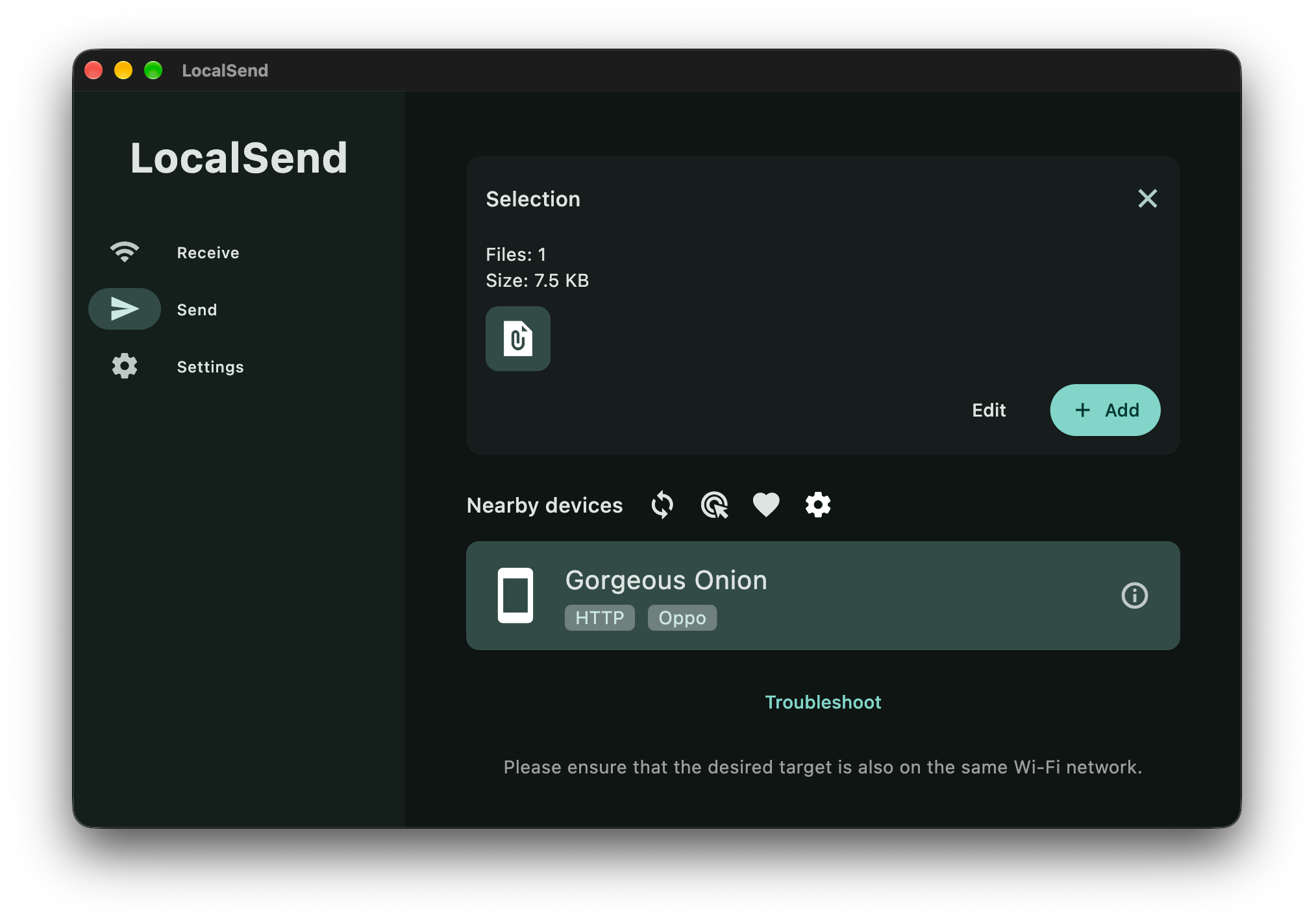
Unless you’ve configured LocalSend to automatically accept incoming transfers, the receiving device will ask you to accept or decline the request.
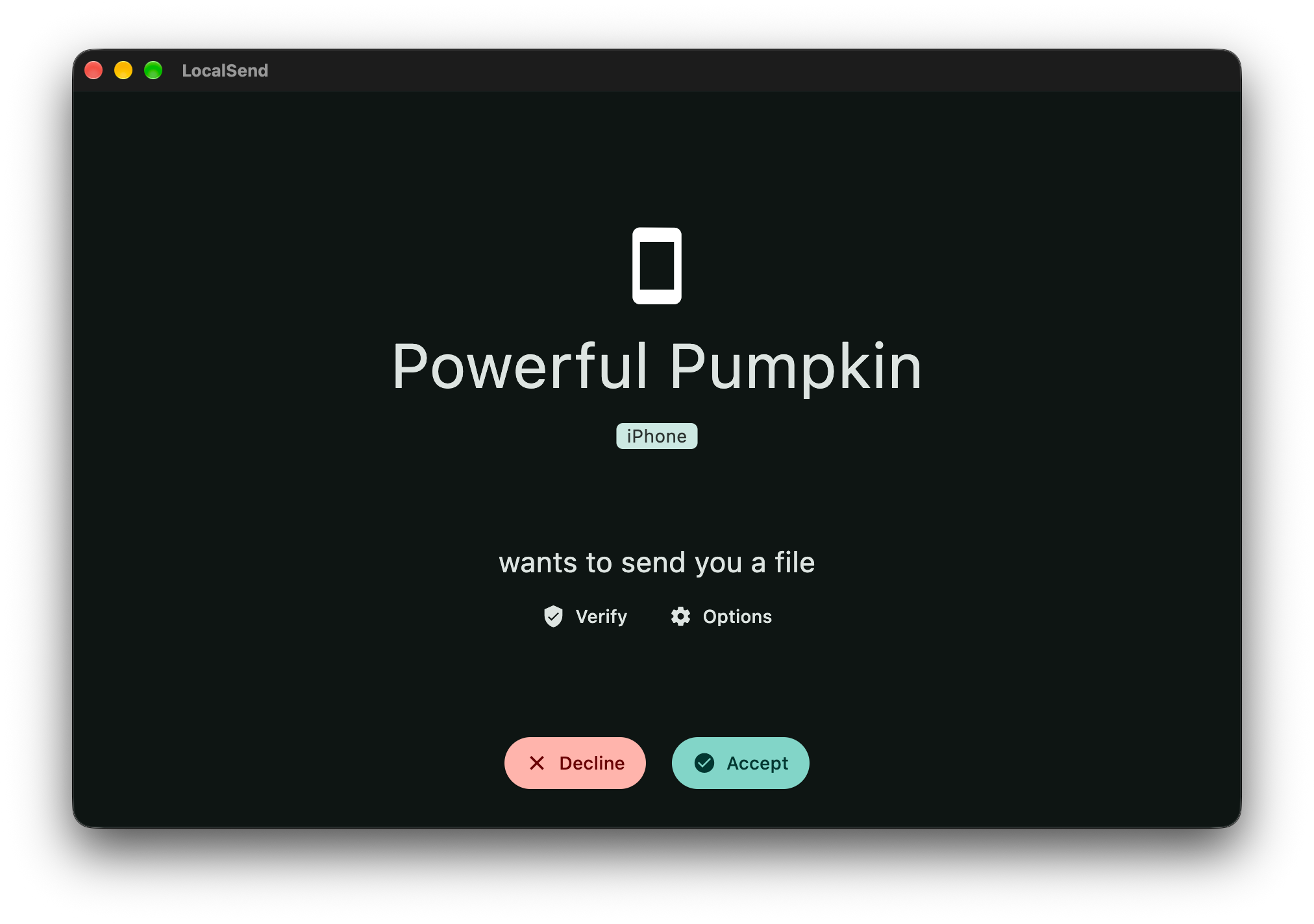
That’s pretty much it.
On desktop, you can also drag and drop files into LocalSend. On mobile, you can select files in another application and use the system’s sharing menu to send them to LocalSend, where supported.
By default, received files are saved to the application’s default download location. You can change this under Settings > Receive > Save to folder. On mobile, there’s also an option to save supported photos and videos directly to your gallery.
Need to send the same files to several devices? Change the Send mode to Multiple recipients. There’s no need to select the files again for each device.
Sending text and links
LocalSend isn’t just for transferring files.
Let’s say you have a long URL open on your computer that you want to open on your phone. Or a command you found on your phone that you want to run on your Linux machine.
Instead of sending yourself an email or saving the text somewhere online, open LocalSend, select Text in the Send tab, paste the clipboard contents and send the text to your other device.
The receiving device can copy the message to its clipboard or open a recognized link directly.
It’s a particularly handy feature if you use devices from different ecosystems and don’t have access to something like Apple’s Universal Clipboard. Just keep in mind that LocalSend sends individual messages. It doesn’t continuously synchronize your clipboard across devices.
Sharing files without installing LocalSend on both devices
One of the more useful features of LocalSend is that you don’t actually need the application installed on every device you want to share files with.
I’ve also used LocalSend’s browser sharing functionality without encountering any issues so far.
There are two separate ways to do this.
Share via link
On the device running LocalSend, select the files you want to share. Open the Send mode menu and select Share via link.
LocalSend starts a local web server and gives you an address that you can open in a browser on another device connected to the same network.
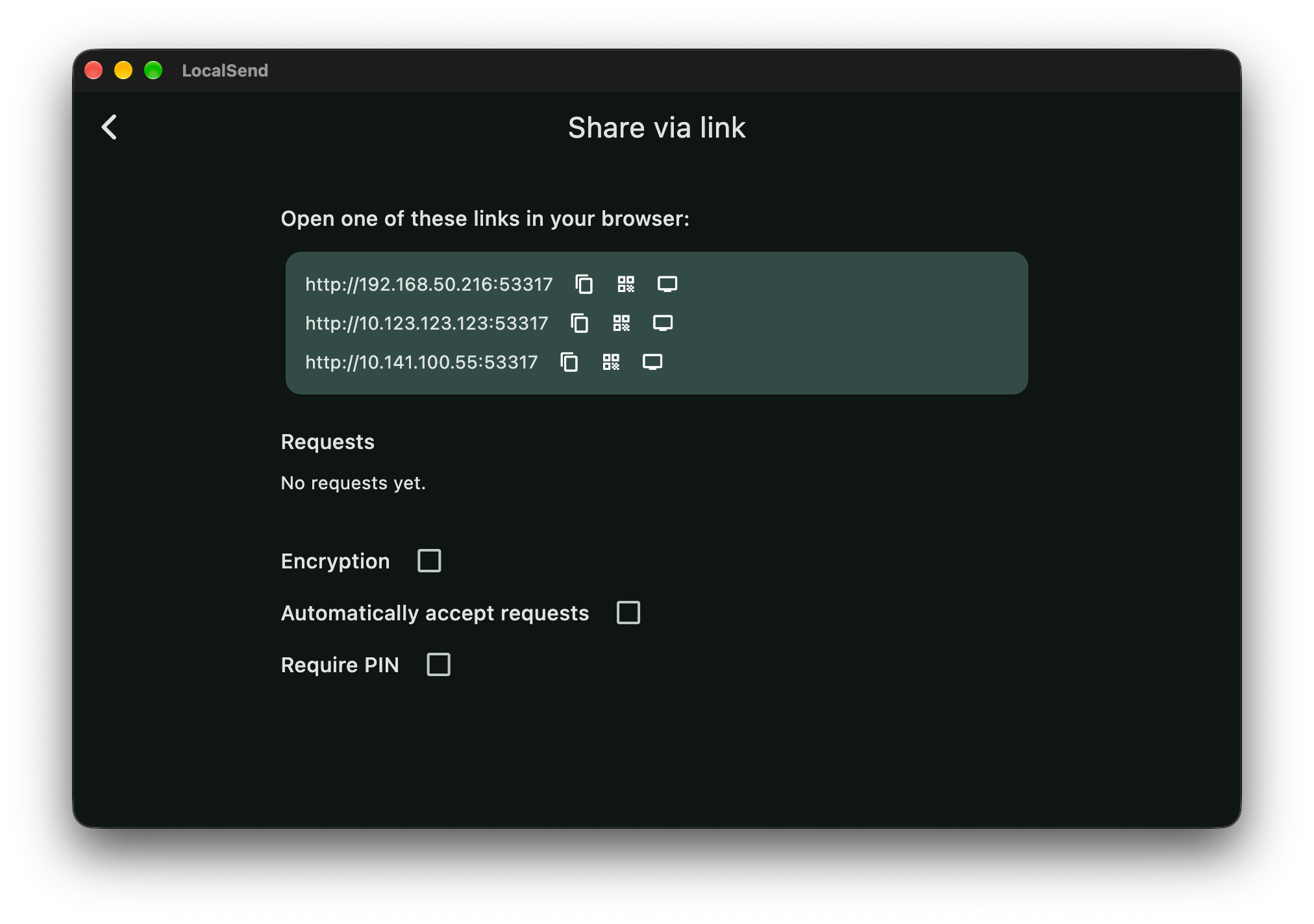
If multiple addresses are displayed, use the one that the receiving device can reach over your local network.
You can also display a QR code, which is particularly useful when the receiving device is a phone. Just scan the code instead of manually typing the address into a browser.
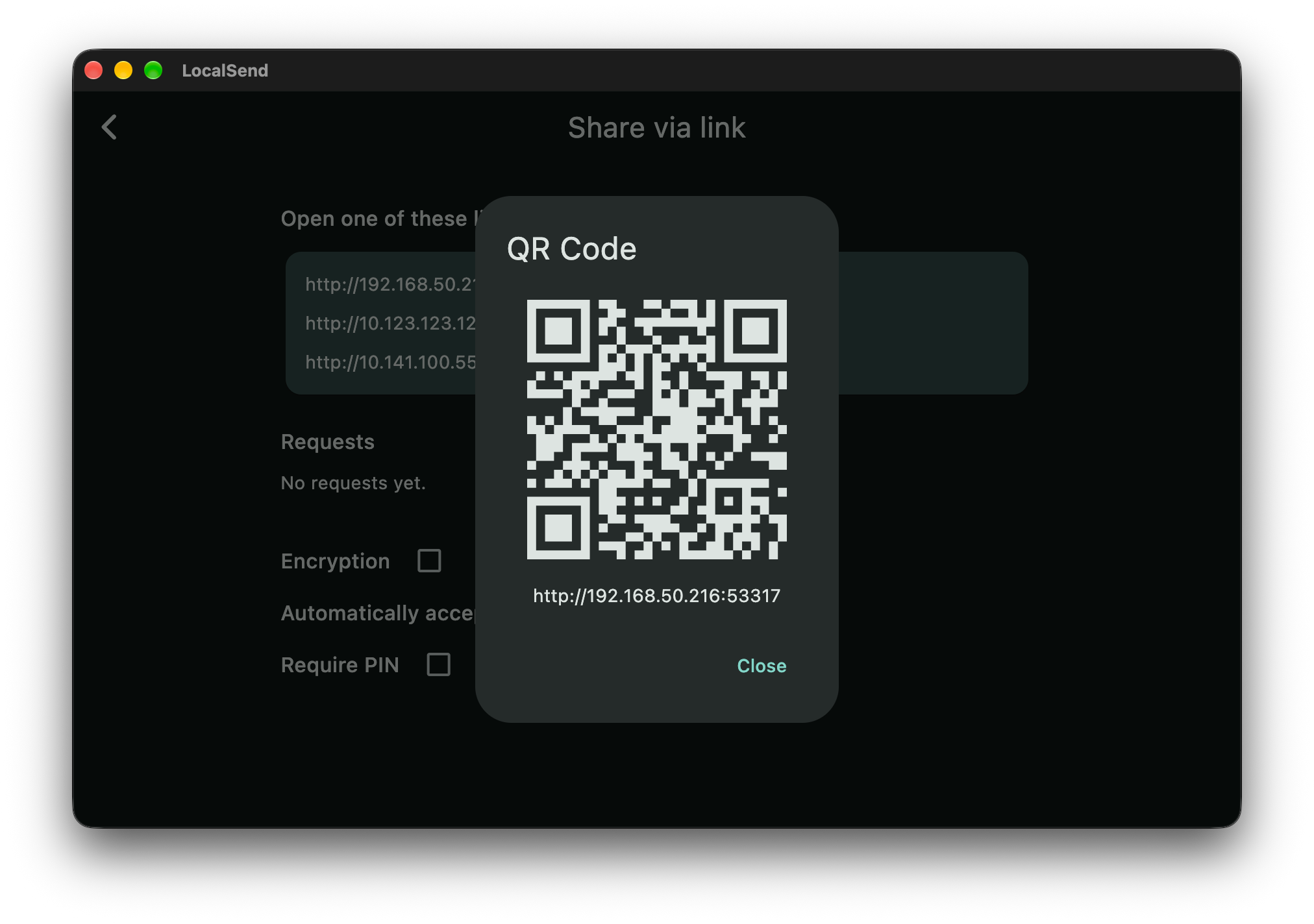
Once the link is opened, the browser can request the files. The incoming request will appear in LocalSend, where you can approve or decline it.
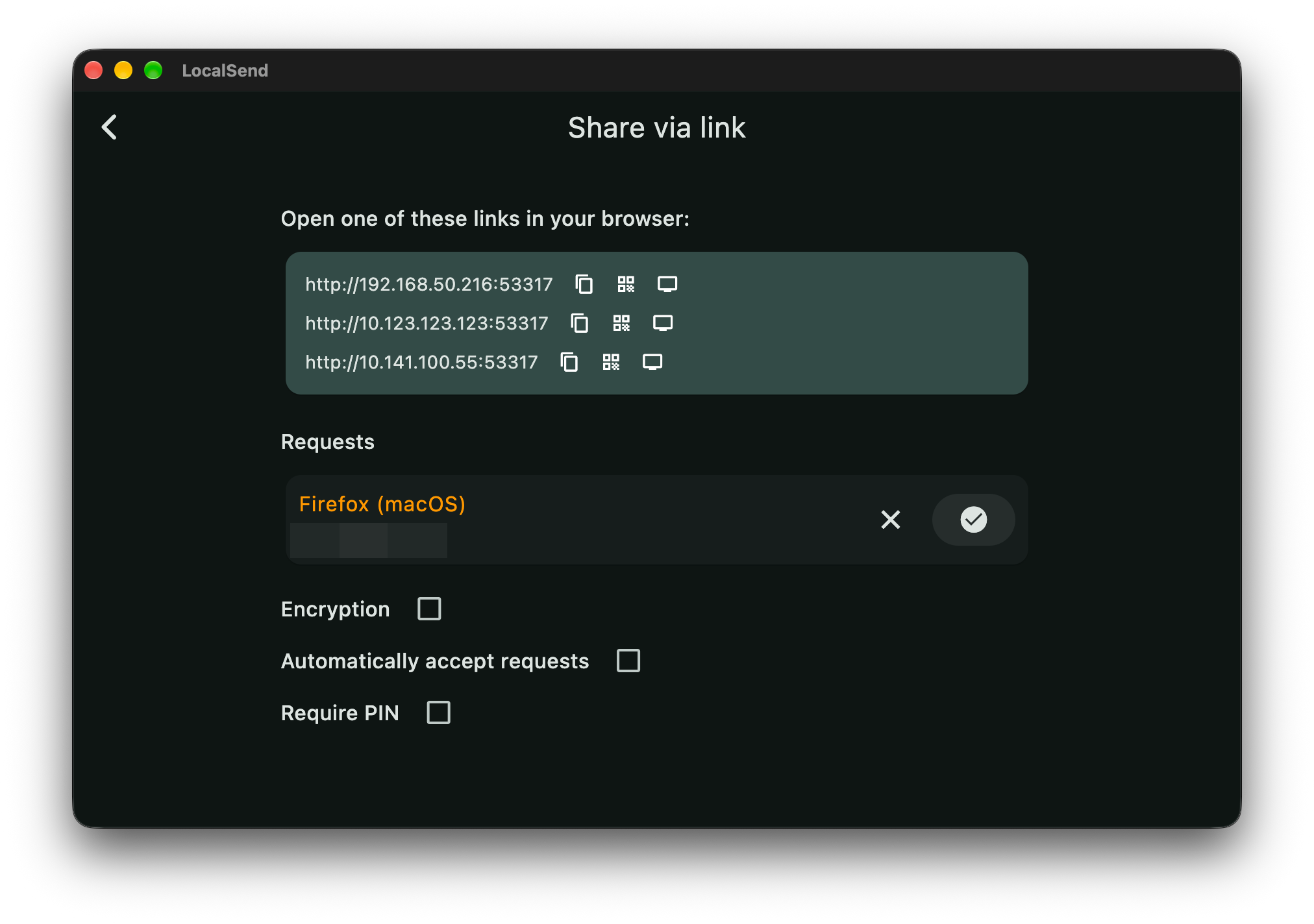
You can also configure the application to accept requests automatically. There’s an option to require a PIN, which is useful when sharing files with other people.
Unlike a Dropbox or Google Drive link, this address points to your own device. It’s not a publicly accessible download link hosted somewhere on the internet. The receiving device needs to be able to reach the device running LocalSend while the sharing session is active.
Receive via link
Introduced in LocalSend 1.18.0, Receive via link works the other way around.
Open the Receive tab and select Receive via link. LocalSend will display an address that another device can open in its browser.
That device can then select files and upload them directly to the device running LocalSend. As of version 1.18.2, the browser page also supports dragging and dropping files.
So if someone wants to give you a few documents or photos but doesn’t have LocalSend installed, you can provide them with a local upload page instead of asking them to install another application.
Both browser modes offer options for encryption, PIN verification and automatic acceptance. Close the sharing page in LocalSend once you’re done to stop serving the browser link.
IMPORTANT: Both browser sharing modes start with encryption disabled by default. You can enable HTTPS separately, but because LocalSend uses a self-signed certificate, your browser may display a certificate warning.
Use browser sharing on a trusted local network. For sensitive files, encrypted transfers between devices running LocalSend are preferable.
Favorite devices and Quick Save
If you regularly transfer files between your own devices, accepting every incoming request can get a little tedious.
LocalSend allows you to mark devices as favorites and configure Quick Save to accept incoming files from those devices automatically.
Since version 1.18.0, automatic acceptance from favorite devices is the default setting. You can also disable Quick Save entirely or configure it to accept files from all devices.
It’s worth restricting automatic acceptance to devices you recognize and control. There’s little reason to allow every device on your local network to send files to your computer without your approval.
LocalSend in the terminal
Version 1.18.0 also introduced an official LocalSend CLI written in Rust.
The CLI provides an interactive terminal interface for discovering devices, sending and receiving files and managing incoming requests. It can communicate with devices running the graphical application.
Desktop CLI packages are available from the project’s GitHub releases page.
Once installed and available in your PATH, you can launch it with:
localsend-cliTo open the interface with a particular file already selected:
localsend-cli --file document.pdfYou can pass multiple files by repeating the --file argument.
Some of the available keyboard shortcuts are:
Dto display discovered and paired devices.1through9to send files to the corresponding device.Yto accept an incoming transfer.Nto decline an incoming transfer.Pto accept and pair with a device.Ctrl+Cto cancel an active operation or quit when idle.
The CLI also implements both browser sharing modes. However, unlike the graphical application, its browser sharing implementation uses unencrypted HTTP.
You can display all available command line arguments with:
localsend-cli --helpI’ve been using the graphical application rather than the CLI, so the terminal examples above are based on the published 1.18.2 source code.
How private and secure is LocalSend?
According to its privacy policy, LocalSend does not collect personal or nonpersonal data from users of the application.
Its architecture also eliminates the need to trust a cloud storage provider with a copy of the files you’re transferring.
Regular transfers between LocalSend applications use HTTPS by default. The devices generate their own TLS certificates, and current versions use certificate fingerprint verification as part of establishing encrypted connections.
You may have noticed the HTTP label next to the Android device in one of the screenshots above. This label identifies the type of connection rather than whether encryption is enabled. It can appear for devices using HTTPS as well.
That doesn’t mean LocalSend makes your device anonymous on the network. Other LocalSend devices can discover information such as your device name and network address. And automatically discovering a device isn’t the same as independently verifying the identity of the person using it.
There are a few settings worth paying attention to:
- Encryption: Keep it enabled for regular file transfers.
- Quick Save: Restrict automatic acceptance to trusted devices or disable it.
- Require PIN: Enable it if you want an additional verification step for incoming requests.
- Save to history: Disable it if you don’t want LocalSend maintaining a local history of received items.
Since version 1.18.0, LocalSend also supports SHA256 checksums. When the sender provides a checksum and the receiving application verifies it, LocalSend can detect whether the received file differs from the expected contents. Both checksum creation and verification are enabled by default in the graphical application.
Checksums are useful for checking file integrity. They don’t, by themselves, establish that a file comes from someone you trust or that it’s safe to open.
Also, transferring a file privately doesn’t make the file itself private. A photo may still contain location information and other embedded metadata. If you intend to share sensitive images or documents, you might want to use something like ExifCleaner to remove unnecessary metadata before sending them.
And keep LocalSend updated. A security vulnerability fixed in version 1.17.0 is a good reminder that locally running software still needs security updates.
What if LocalSend doesn’t discover your devices?
The first thing to check is whether the devices can actually communicate with each other over the network.
Being connected to the same WiFi network doesn’t always mean that two devices are allowed to communicate. Guest networks, for example, often isolate connected devices from one another.
If LocalSend isn’t discovering your devices:
- Make sure LocalSend is running on both devices.
- Check that both devices are connected to the same reachable local network.
- On macOS and iOS, check whether LocalSend has permission to access the local network.
- On Windows, check the network profile and the application’s firewall permissions.
- If you’re using a VPN, check whether it allows access to your local network.
LocalSend uses TCP and UDP port 53317 by default. If you need to configure your firewall manually, restrict access to the trusted local network rather than exposing the port to the internet.
You can also try the manual sending option in LocalSend and enter the receiving device’s IP address. This can help when automatic discovery isn’t working but the devices can otherwise communicate.
The 1.18 series introduced IPv6 support and Android background transfers, along with several fixes to device discovery and compatibility with older versions of the app.
If you’re experiencing problems, check that both devices are running current versions and consult the project’s issue tracker.
Do you still need AirDrop?
If all your devices are made by Apple, AirDrop is already integrated into the operating system and is probably all you need for most nearby file transfers. It can communicate directly with nearby Apple devices without requiring them to join the same WiFi network.
But once you start mixing operating systems, things get a little more complicated.
The appeal of LocalSend is that the operating system becomes largely irrelevant. You get the same basic file sharing workflow whether you’re using a Mac, an Android phone, a Linux machine or a Windows PC.
The main limitation is that LocalSend requires network connectivity between the devices. It doesn’t provide an internet relay service for sending files to someone hundreds of miles away, nor does it continuously synchronize folders between your computers.
For moving files and text between the devices around you, however, LocalSend is an application well worth having installed.
You can download LocalSend from the official website and find its source code on GitHub.