




Back in 2016, with the release of macOS Sierra, Apple removed the option to allow apps from anywhere in macOS from its security settings.
Ten years later, you can still bring it back. And yes, this still works on macOS Golden Gate 27.2.1.
If you regularly download open source apps from GitHub, you’ve probably come across an application that macOS refuses to open because its developer couldn’t be verified or the app hasn’t been notarized by Apple.
That’s Gatekeeper doing its job. But an app that hasn’t been notarized isn’t necessarily malicious.
How to allow apps from anywhere in macOS
The same Terminal command we used in the macOS Sonoma tutorial still works. However, there’s an extra step on newer versions of macOS.
Open your Terminal and run:
sudo spctl --master-disableType in your password when prompted and hit Return.
By the way, in case you’ve missed it, here’s how to enable Touch ID for sudo commands on your Mac.
Now open System Settings > Privacy & Security and scroll down to the Security section.
Click the menu next to “Allow applications from” and you’ll notice a third option: Anywhere.
Select it and confirm the change if prompted.
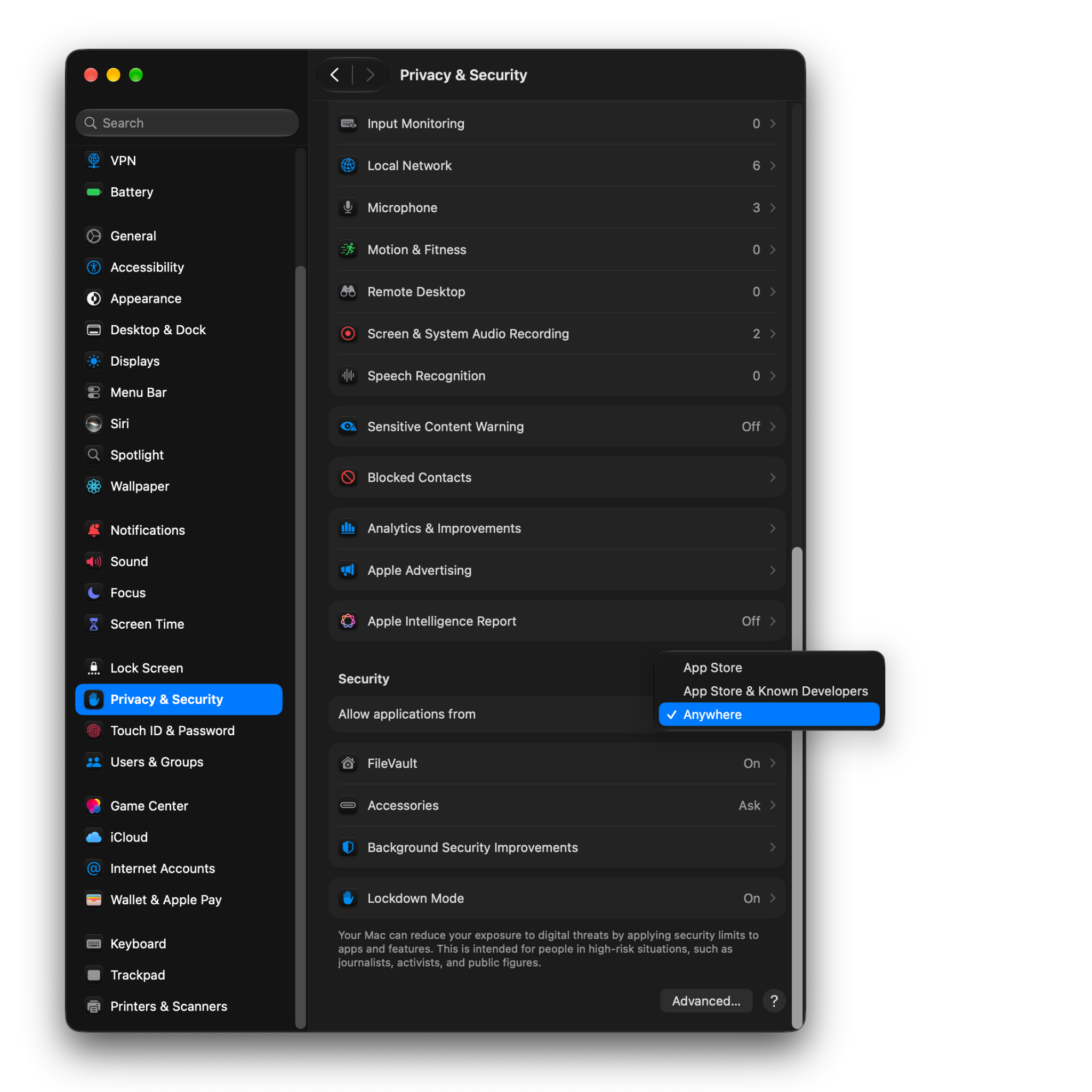
That’s it.
NOTE: This changes Gatekeeper’s policy for all applications, not just the one you’re trying to open. It reduces your Mac’s security and won’t necessarily allow every app to run. Be careful about where you download your software from.
What if you only want to open one app?
You don’t need to disable Gatekeeper for every application on your Mac.
Try opening the app, dismiss the warning and go to System Settings > Privacy & Security. Click “Open Anyway” and confirm your choice.
macOS will remember the exception, so you won’t have to go through this process every time you open that particular app.
Obviously, don’t ignore warnings that an application contains malware or has been tampered with.
How to enable Gatekeeper again
To revert the changes, go back to System Settings > Privacy & Security and select “App Store & Known Developers”.
On older versions of macOS, such as Sonoma, you can also do this from the Terminal:
sudo spctl --master-enableOn newer versions, use System Settings instead.
To check if Gatekeeper is enabled, run:
spctl --statusIt should return:
assessments enabledYou can learn more about Gatekeeper and macOS application security on Apple’s website.