




Alacritty is a fast, GPU-accelerated, cross-platform terminal emulator. And selecting the right Alacritty theme can significantly improve your terminal’s aesthetics and readability.
There are two ways to change your Alacritty theme: import a color scheme directly into your configuration file or use a CLI tool called alacritty-themes.
Last updated: November 20, 2026.

ALSO READ: An Interactive Terminal-Agnostic Theme Selection Script
Alacritty Configuration File
Since version 0.13, Alacritty uses TOML instead of YAML for its configuration. If you’re following an older tutorial that references alacritty.yml, you’ll need to use alacritty.toml instead.
Alacritty doesn’t automatically create a configuration file for you. It looks for one in the following locations:
Linux and macOS
$XDG_CONFIG_HOME/alacritty/alacritty.toml$XDG_CONFIG_HOME/alacritty.toml$HOME/.config/alacritty/alacritty.toml$HOME/.alacritty.toml/etc/alacritty/alacritty.toml
Windows
%APPDATA%\alacritty\alacritty.toml
If you don’t already have a configuration file, you can create one on Linux or macOS using:
mkdir -p ~/.config/alacritty
touch ~/.config/alacritty/alacritty.toml
If you’re still using an old YAML configuration, back it up first and use Alacritty’s migration command:
alacritty migrateYou can find all available configuration options in the official Alacritty documentation.
Method 1: Install Alacritty Themes Manually
The easiest way to apply a theme without installing additional software is to use the official Alacritty theme repository.
On Linux and macOS, assuming you’re using the standard configuration directory, clone the repository using:
mkdir -p ~/.config/alacritty
git clone https://github.com/alacritty/alacritty-theme ~/.config/alacritty/themes
Now open your configuration file:
nano ~/.config/alacritty/alacritty.tomlTo apply the Dracula theme, for example, add:
[general]
import = ["~/.config/alacritty/themes/themes/dracula.toml"]
If your configuration already contains a [general] section or an import list, edit the existing section rather than creating a duplicate. Preserve any other configuration imports you need.
Want to switch to a different theme? Simply change the filename. For example, to use Catppuccin Mocha:
[general]
import = ["~/.config/alacritty/themes/themes/catppuccin_mocha.toml"]
You can browse all available themes and their previews in the official theme collection.
Alacritty normally reloads its configuration automatically. If the new theme doesn’t appear, restart Alacritty and check whether any existing color settings in your main configuration file are overriding the imported theme.
On Windows, download the desired TOML theme, place it inside your Alacritty configuration directory and import it using a relative path. For example, if you saved the theme as dracula.toml next to your main configuration file:
[general]
import = ["dracula.toml"]
Method 2: Using the alacritty-themes CLI Tool
If you prefer selecting themes from an interactive list instead of manually editing your configuration file, there’s a CLI tool called alacritty-themes that comes with over 200 color schemes.
Compatibility note: Although alacritty-themes supports TOML, version 6.0.2 still uses the older import syntax. Modern Alacritty versions expect imports under
[general]. For this reason, the manual method above is recommended. Back up your configuration before using the CLI tool.
Installation
You’ll need Node.js and npm for the npm installation method.
Install alacritty-themes globally using npm:
npm install -g alacritty-themesAlternatively, if you don’t want to install the package globally, use npx:
npx alacritty-themesArch Linux users can also find alacritty-themes in the AUR.
Usage
Once installed, all you have to do is run:
alacritty-themesUse the arrow keys to navigate the available themes or start typing a theme name to search. Press Enter to select a theme.
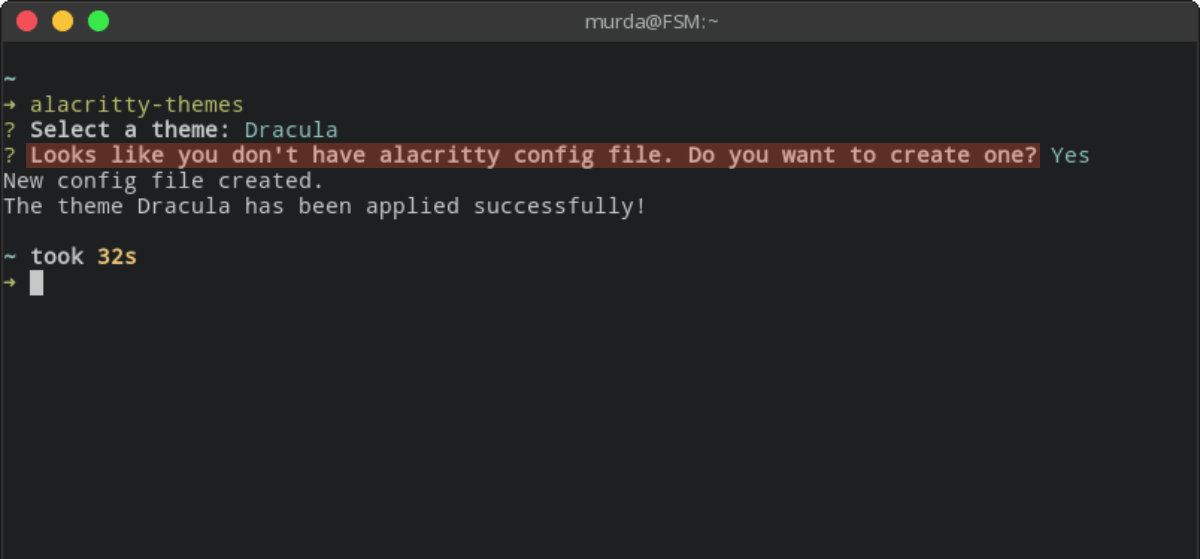
Screenshot from the original 2020 article.
You can also select a specific theme directly from the command line:
alacritty-themes DraculaIf you don’t already have a configuration file, the tool provides an option to create one:
alacritty-themes --createAfter applying a theme, check your alacritty.toml file. If the tool created an import at the root of the file, move the theme path into the import list under [general]. Remove the obsolete root-level import and preserve your other existing imports.
If you encounter configuration warnings, use the official alacritty migrate command or switch to the manual method described above.
Live theme preview was available in earlier versions of the CLI tool but is no longer advertised as a supported feature.
Bonus Tip: Create an Alias
Also, you can alias alacritty-themes to at to save time, provided you don’t already use a command with that name.
For Bash or Zsh, add the following line to your ~/.bashrc or ~/.zshrc respectively:
alias at='alacritty-themes'Open a new terminal session, and you can now use at to launch the theme selector.
Resources
- Alacritty on GitHub
- Alacritty Configuration Documentation
- Official Alacritty Theme Collection
- alacritty-themes CLI Tool