Ever tried cleaning your MacBook’s keyboard while the computer is running? All it takes is a few accidental key presses to open an app, trigger a keyboard shortcut or type a bunch of gibberish.
And now that Apple has introduced its first touchscreen MacBook Pro, even wiping the screen can trigger unwanted input. Here are two little macOS utilities that let you temporarily disable your Mac’s keyboard, trackpad and supported touchscreen: CleanupBuddy and KeyboardCleanTool.
NOTE: These apps block input, not electrical power. Apple recommends shutting down and unplugging your Mac before cleaning it. Follow Apple’s cleaning instructions for your particular model, especially when using any moisture.
Affiliate promotion. FSMdotCOM may earn a commission.


CleanupBuddy
Developed by Gui Rambo, CleanupBuddy is the app I use to clean my Mac without triggering accidental input.
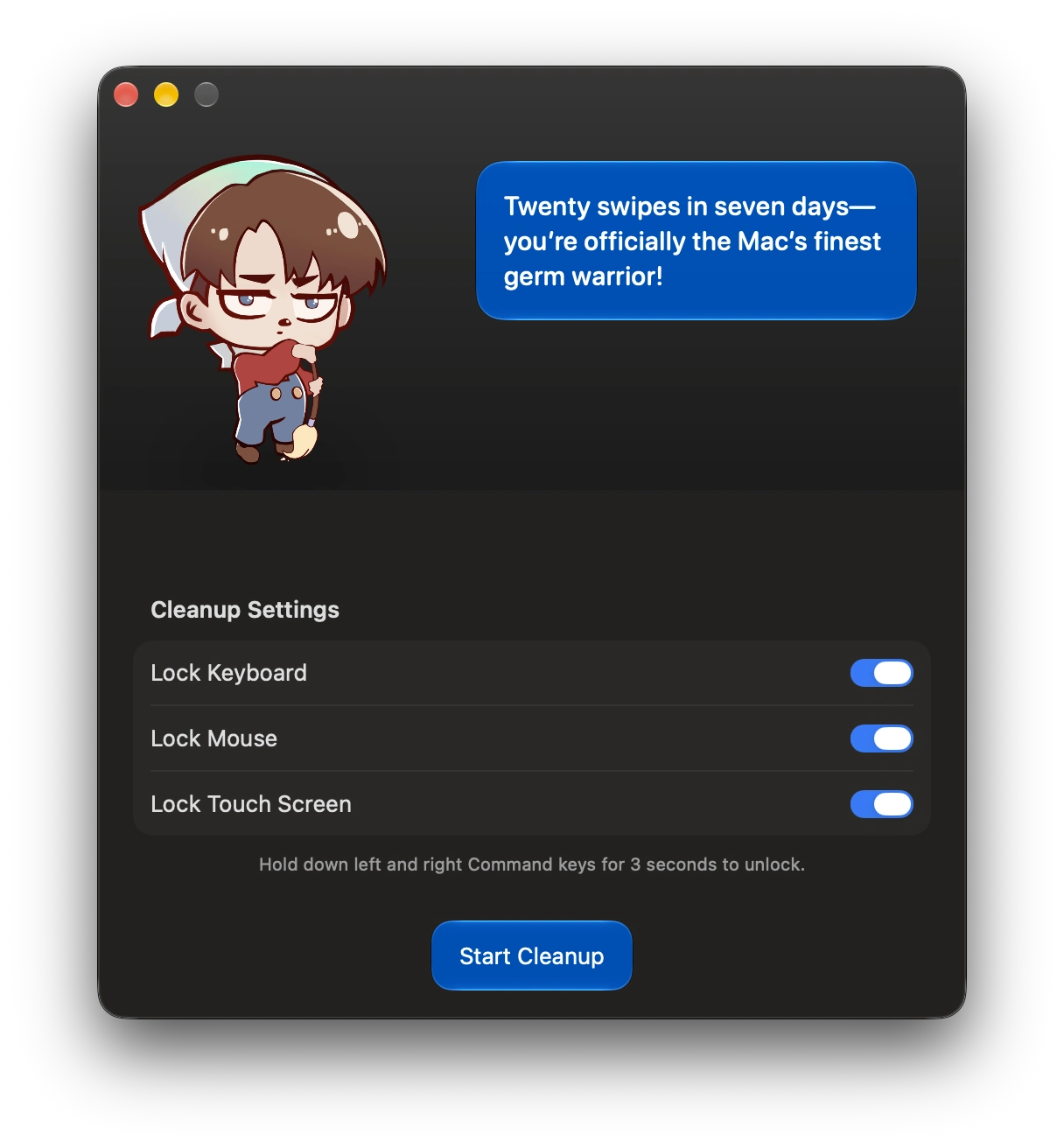
Open the app, choose which inputs you want to block and click Start Cleanup. Once you’re done, hold down both Command keys for three seconds to unlock your Mac.
Version 2.0 adds a Lock Touch Screen option for supported displays, including the new touchscreen MacBook Pro. On Macs without a touchscreen, the Dim Display option helps you see fingerprints and smudges. One limitation to be aware of: according to the version 2.0 release notes, blocking certain system touch gestures requires macOS 27.3 or later.
And because apparently cleaning your keyboard isn’t entertaining enough, CleanupBuddy comes with an animated character that has something to say about your cleaning habits.
CleanupBuddy 2.0 requires macOS Sonoma 14 or later and is available from its official website starting at $2.99. If you’re using Homebrew, run:
brew install --cask cleanupbuddyKeyboardCleanTool
If you’re looking for a free alternative, check out KeyboardCleanTool from the developer of BetterTouchTool. It can block keyboard input (including modifier keys and the Touch Bar), trackpad and mouse input. Version 9 adds touch input blocking for the new MacBook Pro’s display.
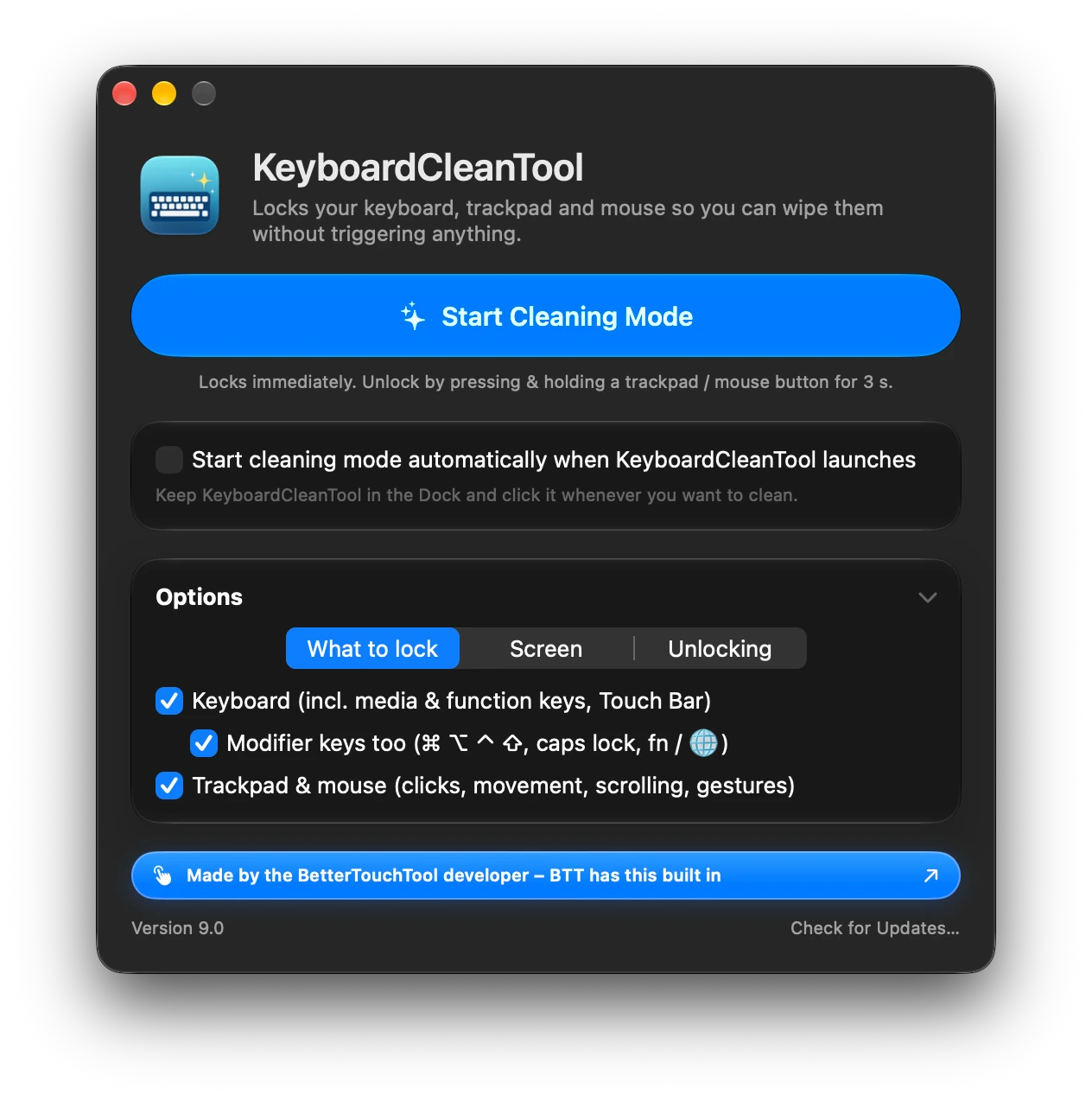
KeyboardCleanTool can also darken all your displays, keep them awake and unlock input automatically after a timer. Instead of using a keyboard shortcut to exit cleaning mode, you press and hold a trackpad or mouse button. If you have a keyboard without separate left and right Command keys, that’s a useful alternative.
KeyboardCleanTool 9 is free and requires macOS Ventura 13 or later. An older version that only locks the keyboard and Touch Bar is available for macOS 10.11 through macOS 12.
To install KeyboardCleanTool via Homebrew, run:
brew install --cask keyboardcleantoolNew to Homebrew? Check out the Homebrew Starter Guide.
I haven’t tested KeyboardCleanTool myself. Whichever app you choose, make sure you know how to exit cleaning mode and check that the inputs you want to block are actually disabled, particularly on a touchscreen Mac.